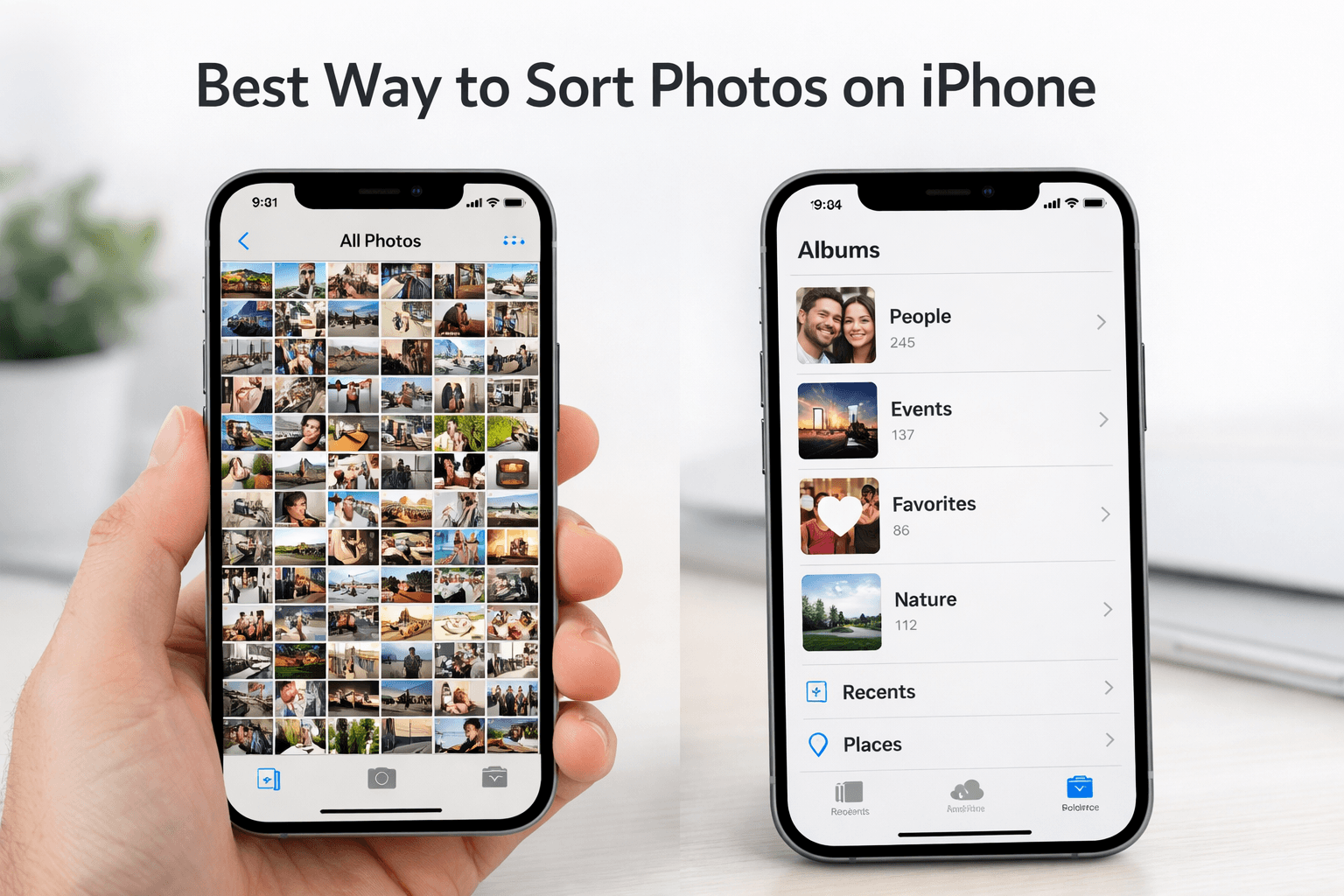
Your iPhone camera roll has thousands of photos. Finding the one you need feels like searching for a needle in a haystack. Here are the best methods to sort iPhone photos, from built-in features most people don't know about to AI-powered tools.
Built-In iPhone Photo Organization Features
Before installing any apps, make sure you're using these built-in features in Apple Photos. Most iPhone users only use 10% of what's available.
1. People & Pets Album (Face Recognition)
Your iPhone automatically recognizes faces and groups photos by person. This happens entirely on-device (no cloud processing), so it's private.
- Open Photos → Albums → People & Pets
- Tap a face to see all photos of that person
- Tap "Name This Person" to add their name
- Merge groups: if iPhone created two groups for the same person, tap "Select" → choose both → "Merge"
Why most people miss this
Face recognition runs in the background when your iPhone is charging and locked. If you have a new phone or haven't left it charging much, the People album may not be fully populated yet. Leave your phone plugged in overnight to speed up processing.
2. Smart Search
The Photos search bar is more powerful than most people realize. You can search by:
- Person name: "Sarah" (if you've named faces in People)
- Location: "Paris", "Beach", "Restaurant"
- Object: "Dog", "Car", "Cake", "Sunset"
- Date: "January 2024", "Last summer"
- Text in photos: "Receipt", "Menu" (uses OCR)
- Combined: "Sarah beach" finds photos of Sarah at the beach
3. Albums (Manual Organization)
Create albums for events, trips, or projects:
- Albums → + to create a new album
- Select photos to add
- Use Smart Albums (Mac only) to auto-populate based on rules
Pro tip: Favorites
Tap the heart icon on your best photos. They appear in the Favorites album, making it easy to find your top photos without scrolling through everything.
4. Memories & Featured Photos
iOS automatically creates Memories - curated collections based on trips, events, or time periods. Check Photos → For You to see AI-generated slideshows and collections.
5. Utilities: Hidden, Duplicates, Recently Deleted
- Hidden: Move private photos out of your main library (Albums → Hidden)
- Duplicates: iOS 16+ automatically detects duplicate photos (Albums → Duplicates → Merge)
- Recently Deleted: Review before permanent deletion (recoverable for 30 days)
Sorting iPhone Photos by Person for Sharing
The People album is great for browsing, but it has a major limitation: you can't easily export all photos of a specific person as an organized folder.
If you need to share organized photos per person (after a wedding, party, or family event), you need a different approach:
Option 1: Manual Selection & Share
- Go to People → tap the person
- Tap "Select" → select all photos
- Tap Share → AirDrop, Email, or save to Files
- Repeat for each person
This works for a few people but becomes tedious with 5+ individuals and hundreds of photos.
Option 2: AI-Powered Organization (Recommended)
- Transfer event photos to your computer (AirDrop, iCloud, or cable)
- Upload to PhotoMind from your browser
- Add reference faces for the people you want to sort by
- Download organized ZIP folders per person
- Share each folder via email, messaging, or cloud link
Why this works better
PhotoMind creates downloadable ZIP folders per person, ready to share. The iPhone People album requires manually selecting and sending photos for each person separately.
Best Third-Party Apps for iPhone Photo Organization
Slidebox
- What it does: Tinder-style swiping to sort photos into albums or trash
- Price: Free (with ads), $4.99 one-time for premium
- Best for: Quick cleanup (deleting bad photos, sorting into albums)
Google Photos
- What it does: Cloud-based photo library with face recognition and search
- Price: Free (15GB), Google One plans for more storage
- Best for: Cross-platform photo library (Android + iPhone + web)
Flic
- What it does: Quick photo review: keep or delete with swipe gestures
- Price: Free
- Best for: Fast camera roll cleanup
The Best iPhone Photo Organization Workflow
Here's a simple system to keep your iPhone photos organized going forward:
Weekly (5 minutes)
- Delete obviously bad photos (blurry, accidental screenshots)
- Favorite your best 3-5 photos from the week
After Events (15-30 minutes)
- Create an album for the event (e.g., "Sarah's Birthday 2026")
- If sharing with others: use PhotoMind to create per-person folders
- Delete duplicates and bad shots from the event
Monthly (15 minutes)
- Check Albums → Duplicates and merge any found
- Review Recently Deleted and clear it
- Name any new faces in the People album
iCloud Photos: To Sync or Not?
iCloud Photos syncs your entire library across all Apple devices. The pros and cons:
Pros
- Photos available on all devices automatically
- "Optimize iPhone Storage" keeps full-resolution in iCloud, thumbnails on phone
- Automatic backup (no manual action needed)
Cons
- 5GB free is very limited (200GB plan: $2.99/month)
- Deleting on one device deletes everywhere
- Apple ecosystem lock-in
Our recommendation
Use iCloud Photos for daily backup convenience, but keep a separate organized archive on an external drive or computer. This gives you both convenience (always accessible) and organization (properly sorted).
Conclusion
The best way to sort photos on iPhone depends on your goal:
- Browsing by person: Use the built-in People & Pets album
- Finding specific photos: Use the search bar (it's smarter than you think)
- Cleaning up: Use the Duplicates utility + an app like Slidebox
- Sharing event photos by person: Use PhotoMind to create organized folders
- Long-term organization: Create albums for events + use Favorites for highlights
The key is building a simple routine. Spend 5 minutes weekly and 15 minutes after events, and your photo library will stay organized automatically.
Sort Event Photos by Person
Upload iPhone photos, add faces, download organized folders. Free for 100 photos.
Try PhotoMind FreeTry PhotoMind Free
Organize your event photos by person in 10 minutes. Free tier: 100 photos, 3 reference faces. No credit card required.
Get Started FreeRelated Articles
How to Organize Wedding Photos by Person in 2026
Face Recognition Software: Privacy & Security Best Practices
Wedding Photographers: How to Deliver Photos Faster to Clients
Best AI Photo Organizer Tools in 2026: Complete Comparison
How to Share Wedding Photos with Guests: Complete Guide
How to Organize Family Reunion Photos by Person
Bulk Photo Sorting: 5 Ways to Organize Hundreds of Photos Fast
Google Photos Face Recognition: Limitations & Better Alternatives
How to Organize Thousands of Photos Automatically
How to Find and Remove Duplicate Photos Automatically
How to Tag and Search Photos with AI: Text Search, Face Tags & More
How to Organize Family Photos Digitally (Before They're Lost)
How Professional Photographers Manage Large Photo Libraries
Best AI Photo Management Software: Stop Wasting Time Searching
Found this helpful? Read more articles