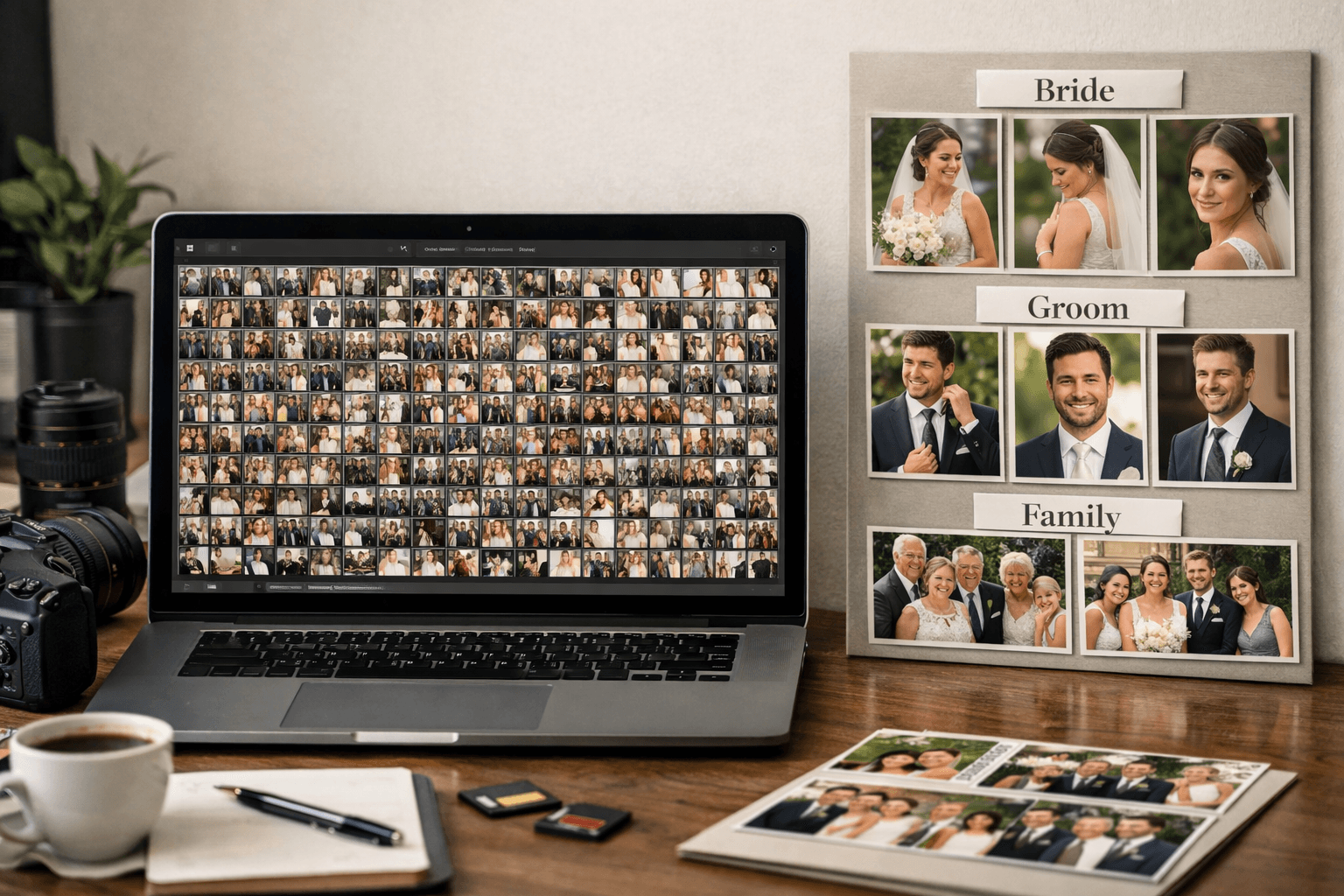
After a wedding, you typically have 300-1000+ photos. Whether you're the photographer delivering photos to clients, or a family member wanting to share photos with guests, organizing them by person can take 5-10 hours. There has to be a better way.
The Problem: Hours of Manual Work
Manually sorting through hundreds of photos, identifying people, and creating individual folders is tedious. Most people spend an entire evening (or more) just organizing photos from a single event.
Whether you're a professional photographer trying to deliver organized galleries to clients, or a family member wanting to share photos with relatives, the challenge is the same: how do you efficiently find all photos of specific people?
Method 1: Manual Organization (Traditional)
This is the old-school approach most people still use:
- Create folders for each person or family group
- Open each photo individually
- Identify people in the photo
- Copy/move to appropriate folders
- Repeat 300+ times
Time required:
5-10 hours for 300 photos
Pros: Free, complete control, works offline
Cons: Extremely time-consuming, prone to human error, mind-numbingly tedious
Method 2: AI-Powered Face Recognition (Modern)
Modern face recognition technology can automate this entire process. Here's how it works:
- Upload all wedding photos in bulk (drag & drop)
- Upload 1-3 reference photos of each person you want to find
- AI detects faces and compares them with your references
- Download organized folders per person
Time required:
10-15 minutes for 300 photos
That's 30x faster than manual sorting!
Pros: 30x faster, accurate (80%+ match rate), effortless, automated
Cons: Requires software (though free tiers exist), internet connection needed
How Face Recognition Works
Modern face recognition uses AI (specifically, AWS Rekognition, Azure Face API, or similar) to:
- Detect faces: Identifies all faces in your photos automatically
- Extract features: Analyzes facial landmarks (eyes, nose, mouth position, face shape)
- Compare: Matches detected faces with your reference photos using similarity scores
- Organize: Groups photos by person automatically into folders
The accuracy is typically 80-95% depending on photo quality, lighting conditions, and angles. Clear, well-lit photos produce the best results.
Best Tools for Organizing Wedding Photos by Person
1. PhotoMind (Recommended)
- Free tier: 100 photos, 3 reference faces - Perfect for trying it out
- Premium ($12.99/month): 2,000 photos, 7 faces, 10 jobs/month
- Business ($49.99/month): 6,000 photos, 10 faces, 15 jobs/month
- Privacy: Photos auto-delete after 24 hours (GDPR compliant)
- Best for: Weddings, family reunions, corporate events
- Unique feature: Organized ZIP folders ready to share
2. Google Photos
- Free: 15GB storage included
- Pros: Automatic face grouping, unlimited storage with quality compression
- Cons: No bulk export by person, privacy concerns (photos stored indefinitely), must upload entire library
3. Adobe Lightroom
- Price: $9.99/month
- Pros: Professional editing tools, facial recognition
- Cons: Steep learning curve, no automatic organization by person, designed for cataloging not sharing
Step-by-Step: Using PhotoMind
Here's how to organize your wedding photos in under 15 minutes using PhotoMind:
Step 1: Upload Photos
Drag and drop all wedding photos (supports JPG, PNG). You can upload up to 100 photos free, or upgrade for larger events. The upload is fast using direct S3 uploads.
Step 2: Add Reference Faces
Upload 1-3 clear photos of each person you want to find. For example:
- Bride: Upload 2 close-up photos from the day (different angles)
- Groom: Upload 2 clear face shots (smiling and neutral)
- Mother of the bride: Upload 1-2 well-lit photos
Pro Tip
Use frontal, well-lit photos for best accuracy. Avoid sunglasses, extreme angles, or photos where the face is partially covered.
Step 3: Process
Click "Process" and wait 5-10 minutes. The AI will:
- Detect all faces in your uploaded photos
- Compare each detected face with your references
- Match faces with 80%+ similarity
- Organize photos into folders per person
- Create a separate "Unclassified" folder for unmatched photos
Step 4: Download Organized Folders
Download ZIP files for each person. Each ZIP contains all photos where that person appears. Share the ZIPs directly with family members or clients - they're ready to go!
Tips for Better Results
- Use high-quality reference photos: Clear, frontal, well-lit faces work best (avoid blurry or dark photos)
- Multiple angles: Upload 2-3 reference photos per person from different angles (front, slight side angle)
- Good lighting: Photos with harsh shadows or backlighting may have lower match rates
- Consistent expressions: Mix of smiling and neutral reference photos improves accuracy
- Check unmatched folder: Review the "Unclassified" folder for missed matches (usually 5-10% of photos)
- Remove accessories: Avoid sunglasses, hats, or masks in reference photos when possible
| Method | Time (300 photos) | Accuracy | Cost |
|---|---|---|---|
| Manual | 5-10 hours | 100% | Free |
| PhotoMind | 10-15 minutes | 80-95% | Free tier available |
| Google Photos | 30 min (setup) | 85-90% | Free |
Privacy Considerations
When using face recognition software, look for these privacy features:
- Auto-delete: Photos should be deleted after processing (PhotoMind: 24 hours)
- No facial data storage: Encodings should not be permanently stored in databases
- GDPR compliant: Ensure the service follows EU privacy regulations
- Secure uploads: HTTPS encryption and encrypted storage (S3, etc.)
- No third-party sharing: Your photos should never be shared with advertisers
- Transparent privacy policy: Clear documentation of data handling practices
PhotoMind Privacy Guarantee
All photos auto-delete after 24 hours. No facial encodings are stored. GDPR compliant. Your privacy is our top priority.
Conclusion
Organizing wedding photos by person no longer needs to take hours. With AI-powered face recognition, you can automate the entire process in 10-15 minutes.
Whether you're a professional photographer delivering photos to clients, or a family member organizing photos to share with guests, tools like PhotoMind can save you 10+ hours per event.
The best part? The free tier (100 photos, 3 reference faces) is perfect for trying it out on your next small event. No credit card required.
Try PhotoMind Free
Organize your event photos by person in 10 minutes. Free tier: 100 photos, 3 reference faces. No credit card required.
Get Started FreeRelated Articles
Face Recognition Software: Privacy & Security Best Practices
Wedding Photographers: How to Deliver Photos Faster to Clients
Best AI Photo Organizer Tools in 2026: Complete Comparison
How to Share Wedding Photos with Guests: Complete Guide
How to Organize Family Reunion Photos by Person
Bulk Photo Sorting: 5 Ways to Organize Hundreds of Photos Fast
Google Photos Face Recognition: Limitations & Better Alternatives
How to Organize Thousands of Photos Automatically
Best Way to Sort Photos on iPhone: Albums, Faces & AI
How to Find and Remove Duplicate Photos Automatically
How to Tag and Search Photos with AI: Text Search, Face Tags & More
How to Organize Family Photos Digitally (Before They're Lost)
How Professional Photographers Manage Large Photo Libraries
Best AI Photo Management Software: Stop Wasting Time Searching
Found this helpful? Read more articles